


I’ll be honest with you: I am terrible at making product demos. My raw screen recordings are full of “ums,” awkward pauses, and me clicking the wrong tab at least twice. So when I came across Trupeer AI — a tool that promises to turn a rough recording into a polished demo video and a written step-by-step guide, automatically — I figured it deserved a proper trupeer ai review.
Here’s the short version: it actually works. I ran a messy walkthrough through it, and Trupeer handed back a clean video with a professional AI voiceover, zoom effects, and captions — plus a surprisingly solid written guide generated from the same recording. It’s not flawless (the free plan is stingy and the AI-minute caps will bite you), but if you make demos or tutorials on a regular basis, this thing can save you hours every week.
Quick Answer
- What it is: An AI tool that converts a raw screen recording into a polished demo video and a matching step-by-step written guide — with AI voiceover, zoom effects, and translations.
- Rating: 4.8/5 on G2 (small review base).
- Best for: Product, customer success, and sales teams making demos, tutorials, and onboarding content without a video editor.
- Pricing: Free plan ($0) · Pro $49/mo ($40/mo billed annually) · Scale $249/mo ($199/mo annually) · Enterprise custom.
- The catch: AI video minutes are capped every month and don’t roll over.
- Bottom line: A genuine time-saver if you publish demo or tutorial content regularly; overkill for the occasional one-off video.
What Does It Actually Do?
Trupeer AI (trupeer.ai) is built for one job: turning raw screen recordings into finished content. You record your screen with its Chrome extension — or upload a video you already recorded — and the AI takes over from there.
It cleans up your recording automatically: cutting dead air, trimming mistakes, and tightening everything into something watchable. Then it writes a professional script and narrates it with a studio-quality AI voiceover, so you never have to record your own voice (or re-record it seventeen times like I do).
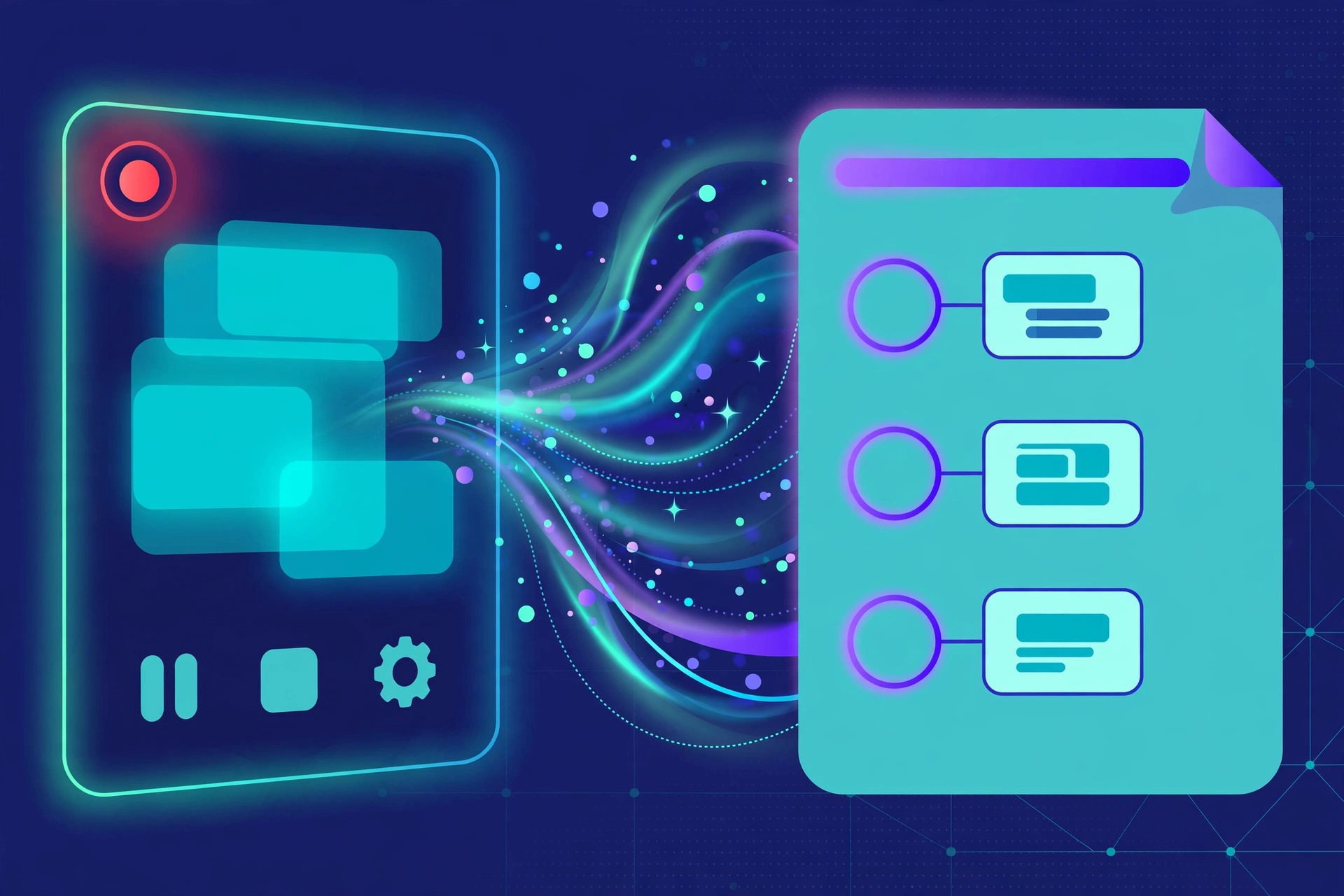
Here’s the part that sold me: from that single recording, it generates two outputs in parallel — a polished demo video with zoom effects, panning, intros and outros, captions, and even AI avatars, plus a matching step-by-step written guide with screenshots. One recording, two finished assets.
It’s aimed squarely at product, customer success, and sales teams — anyone who needs demos, tutorials, and onboarding content but doesn’t have a video editor on staff (or the patience to become one).
Key Features
Record via Chrome Extension or Upload
You’ve got two ways in: hit record with the Chrome extension and walk through your workflow, or upload an existing video file. I like that there’s no new recording ritual to learn — just do your normal messy demo and let the AI deal with it.
AI Editing That Cleans Up Your Raw Recording
This is the magic. The AI automatically cleans, shortens, and edits the raw footage — cutting pauses, filler, and wrong turns. What comes out feels like something an actual editor touched. It’s the difference between a 12-minute ramble and a tight 4-minute demo.
Professional Scripts With AI Voiceovers
Trupeer writes the narration script for you and delivers it in a studio-quality AI voice. The voices genuinely sound good — not the robotic text-to-speech of five years ago. One caveat worth knowing: some reviewers note that a chosen accent can occasionally revert to US English, so double-check the voiceover before you ship.
Zoom Effects, Captions, Intros, and AI Avatars
The video doesn’t just get a voiceover — it gets the full treatment: automatic zoom effects and panning that follow your cursor, captions, polished intros and outros, and even AI avatars if you want a “presenter” on screen. These are the touches that make a demo look expensive, and here they’re automatic.
A Matching Step-by-Step Guide, Generated in Parallel
My favorite feature, honestly. While it’s building your video, Trupeer simultaneously generates a written step-by-step guide from the same recording — complete with screenshots. If your support docs and your video tutorials have ever contradicted each other (mine have), this solves it at the source.
Translations, Screenshot Editor, and Brand Kit
Need the demo in Spanish and German too? The AI translation feature handles multiple languages — just know each translation consumes AI video credits, so plan your minutes accordingly. There’s also a screenshot editor and picker for fine-tuning visuals, plus branded share pages and a brand kit on the Scale plan and up. And if you want a full help center, the Knowledge Base add-on hosts articles on your own custom domain with AI search.
Pricing
Trupeer keeps it simple with four tiers plus an add-on. Here’s the breakdown:
- Free — $0: 10 AI video minutes, 5 AI guides, 3 exports, recordings up to 3 minutes. It’s watermarked, and the limits are tight — this reads like a trial, not a real free tier.
- Pro — $49/month (or $40/month billed annually): 20 AI video minutes per month, unlimited guides and exports, watermark removal, recordings up to 8 minutes.
- Scale — $249/month (or $199/month billed annually): 100 AI video minutes per month, a team workspace with 3 editors, custom voices and backgrounds, branded share pages, and CTA links.
- Enterprise — custom pricing: SAML SSO, admin dashboard, and advanced analytics.
- Knowledge Base add-on — $150/month for unlimited articles with a custom domain, or $200/month with AI search included.
One important detail: AI video minutes reset every month and do NOT roll over. Unused minutes vanish, so size your plan to what you’ll actually use.
My honest take: the Free plan is a test drive, nothing more — 10 minutes goes fast when translations eat credits too. Pro at $49/month is the sweet spot for solo creators and small teams making a handful of demos a month. The jump to Scale at $249/month is steep, and it only makes sense if you’re a team cranking out content constantly. Whatever you pick, keep an eye on those monthly minute caps — they’re the real constraint of the whole platform.
Trupeer AI
Turn rough screen recordings into polished demos and step-by-step guides — automatically.
Free plan available
Trupeer AI Review: How It Compares to Guidde and Scribe
A quick reality check against the two tools people always ask about:
| Trupeer AI | Guidde | Scribe | |
|---|---|---|---|
| Best for | Teams that want polished demo videos and written guides from one recording | Teams that want interactive, clickable HTML demos and how-to videos | Anyone who needs fast step-by-step text guides with zero fuss |
| Price | Free plan; Pro $49/mo; Scale $249/mo | Cheaper entry point (around $35/mo Solo) | Simpler and cheaper than both |
| Key strengths | AI voiceovers, zoom effects, translations, parallel video + guide generation | Interactive demos, lower starting price | Dead-simple capture, fastest path to a finished guide |
| Learning curve | Easy — record, let the AI edit, tweak the result | Easy | Easiest — practically zero learning curve |
Pros and Cons
What I like:
- One recording becomes two assets: a polished video and a written guide. That alone justifies it for me.
- The AI cleanup is genuinely good — it turns rambling footage into something tight and watchable.
- Voiceovers sound professional, and captions plus zoom effects make demos look expensive.
- Translations are a lifesaver if you support users in multiple languages.
- Branded share pages look sharp and professional out of the box.
What I don’t like:
- AI video minutes are capped monthly and don’t roll over — and translations eat into the same pool.
- The AI voice accent can occasionally revert to US English, which is annoying if you picked a specific accent.
- Editing after generation can throw the script and video out of sync, so get it right early.
- There are no CMS or LMS integrations, which limits how neatly it fits into bigger content workflows.
- The price jump from Pro ($49) to Scale ($249) is steep.
How to Get Started
- Install the Trupeer Chrome extension — or gather a screen recording you want to polish.
- Hit record and walk through your workflow naturally. Mistakes are fine; that’s the whole point.
- Let the AI clean up, shorten, and edit your raw recording.
- Review the AI-generated script and voiceover, and fix anything that sounds off.
- Add zoom effects, captions, an intro/outro, and your branding.
- Generate the matching step-by-step guide from the same recording.
- Export your video or share it via a branded page — and translate it if your audience needs it.
FAQs
Is Trupeer AI really free?
Yes — there’s a $0 Free plan with 10 AI video minutes, 5 AI guides, 3 exports, and recordings up to 3 minutes. It’s watermarked and the limits are tight, so treat it as a trial. Paid plans start at Pro, $49/month.
What exactly does Trupeer AI create from my recording?
Two things, in parallel: a polished demo video (AI voiceover, zoom effects, captions, intros/outros, optional AI avatars) and a matching step-by-step written guide with screenshots.
How is Trupeer AI different from Scribe?
Scribe is a step-by-step guide specialist — simpler and cheaper, but it doesn’t produce real video output. Trupeer gives you both a finished video and a written guide from a single recording.
Do unused AI video minutes roll over to next month?
No. AI video minutes reset every month and do not roll over, so plan your usage — and remember that translations consume credits too.
Can Trupeer translate my demo videos into other languages?
Yes, it offers AI translation into multiple languages. Just note that each translation consumes AI video credits from your monthly allowance.
Final Verdict
So, is Trupeer worth it in 2026? If you’re on a product, customer success, or sales team and you regularly make demos, tutorials, or onboarding content, yes — it’s one of the fastest ways I know to turn a rough recording into something you’d actually be proud to share. The parallel guide generation is the killer feature for me.
If you only make the occasional video, though, the monthly minute caps and the Pro price tag are hard to justify — the free plan will run out fast, and Scribe or a basic editor might cover your needs just fine.
My recommendation: start with the free plan, run one real recording through it, and see the before-and-after for yourself. If it saves you an afternoon of editing, you’ll know. Try it at trupeer.ai.