

I’ll be honest: I opened CapCut expecting another overhyped free app, and I closed it a week later with a genuinely useful editor on my phone — and a knot in my stomach about its terms of service. That’s the whole capcut review 2026 in one sentence, really. It’s excellent at the job most creators actually need, and it comes with a catch you should understand before you hand it your footage.
If you’ve ever filmed a decent clip, then lost an evening to editing it — trimming dead air, typing out captions by hand, hunting for a template that doesn’t look cheap — this review is for you. I spent my research time on the official site, CapCut’s own Standard vs Pro comparison page, its pricing pages as reported in October 2026, and what creators and lawyers said about the June 2025 terms change. No guessing on prices here.
Quick honesty note up front: this is a well-researched review, not a hands-on test in a studio. I didn’t cut a client project in CapCut for this piece. What follows is built from CapCut’s own pages, its help documentation, and independent reporting — and where sources disagreed, I’ll tell you they disagreed instead of picking the tidier number.
Quick Answer: CapCut is ByteDance’s free video editor for phone, desktop, and web, and it’s the fastest way I know to turn raw footage into a captioned short. The free tier is genuinely usable, and Pro costs $19.99 a month or $179.99 a year (checked November 5, 2026, against CapCut’s own pages and October 2026 pricing coverage). It’s best for short-form creators, TikTok and Reels posters, and anyone who edits on their phone. It’s not the right home for sensitive client footage, and it’s not a Premiere Pro replacement.
What Does It Actually Do?
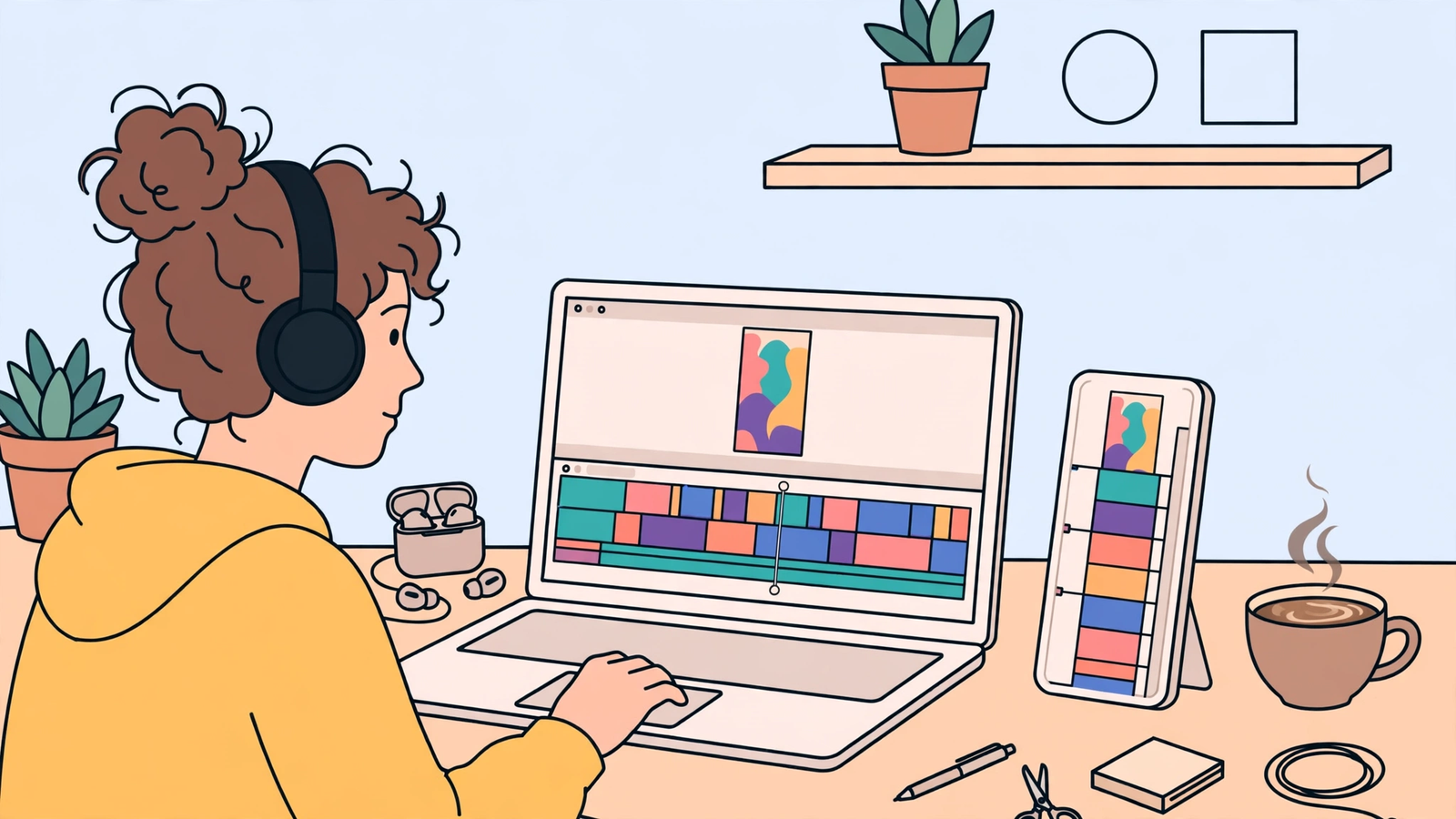
CapCut is a timeline video editor with a template library and a stack of AI tools bolted on top. You drop in clips, trim them on a timeline, add text, music, transitions, and effects, and export for TikTok, Reels, Shorts, or YouTube.
The pitch is speed. A creator can take a talking-head clip, generate captions automatically, drop it into a trending template, and post it the same evening, all from a phone. The desktop and web versions exist for longer sessions, and projects can move between phone, desktop, and web on a paid plan with cloud storage. Features aren’t identical on every platform, though — templates and AI tools vary by device and region.
Key Features
Auto-Captions That Actually Save an Evening
Auto-captions are CapCut’s killer feature — this is the one that changes how fast you ship. The app transcribes your speech and drops animated, word-by-word captions onto the video in styles that look native to TikTok and Reels. On the free plan, auto-captions are limited — independent comparisons report a cap of around 10 minutes per video and a monthly credit limit — while Pro removes those caps. If you post daily, the free allowance will run out on you.
Background Removal Without a Green Screen
Background removal cuts you out of your footage and lets you swap in a blur, a color, or an image behind you. No green screen, no careful masking by hand. On the free plan it’s credit-limited; on Pro it’s unlimited. For talking-head creators filming in a messy bedroom, this one feature alone is worth trying the free tier for.
Trending Templates
Templates are pre-built edits — timing, transitions, effects, and music already decided. You swap in your own clips and photos. The free library is decent; the templates everyone is actually using this week are mostly Pro-tagged. And here’s the watermark trap: use a Pro template or effect on the free plan and your export carries a watermark unless you upgrade.
Script-to-Video and AI Video Generation
CapCut’s AI video maker (built on ByteDance’s Seedance model) turns a script or a reference image into an editable video draft — with a voiceover, music, and captions you can then fix up on the timeline. This is newer and credit-hungry: Pro includes a monthly AI credit allowance (sources report 1,200 a month, though CapCut notes allowances can vary by account and region), and heavy AI generation burns through credits fast. Treat it as a first-draft machine, not a finished-video machine. If you already have footage to cut, the regular editor is still the better tool — and if you want to chop a long video into shorts, my Opus Clip review covers a tool built specifically for that job.
Cross-Platform Projects
CapCut runs on iOS, Android, Windows, macOS, and the web. Start a cut on your phone, finish it on your desktop — that’s the idea, and on Pro with its cloud storage it mostly works. The catch: the feature set isn’t a perfect mirror across platforms, and the cheapest paid tier, Standard, is a mobile-only plan sold through the app stores. If you edit on desktop, you need Pro, not Standard.
Pricing: Verified on the Official Page
I checked pricing on November 5, 2026, against CapCut’s own Standard vs Pro page and multiple October 2026 pricing checks of capcut.com. One warning first: CapCut itself says its displayed prices are “for reference only” and that your final price, taxes, and offers appear after you sign in — and prices vary by region and platform. So treat these as US list prices, and check your own checkout before paying.
- Free — $0. Full timeline editor, basic templates and effects, 1080p export, and limited AI credits each month. Pro-tagged templates and effects add a watermark on export.
- Standard — $9.99 a month (mobile app only). Watermark-free mobile exports and a bigger template and effects library, but no 4K export and no full AI toolkit. There’s no annual Standard plan published.
- Pro — $19.99 a month or $179.99 a year (about $15 a month on annual billing). 4K export at up to 60fps, the full AI toolkit, Pro templates and effects without watermark, a monthly AI credit allowance, and 1TB of cloud storage on CapCut’s comparison page. Paying yearly saves about $60 versus twelve monthly payments.
- Ultra — around $79 a month. A much larger AI credit allowance for heavy AI video generation. CapCut shows Ultra and Teams pricing after sign-in, so confirm it in your account.
Now, the part that confused me, and will confuse you if you read older reviews: a lot of 2025 articles say Pro costs $9.99 a month or about $75–$90 a year. That was true — and then CapCut restructured its plans in early 2026. The old Pro price point became Standard, and a new, more capable Pro launched at $19.99. If a review still quotes you $9.99 for Pro with 4K and the full AI suite, it’s describing a plan that no longer exists at that price. That price jump, roughly double, is also why so many creators feel the paywall creep: features that were free or cheap two years ago — unlimited auto-captions, full background removal, the best templates — now sit behind the $19.99 tier.
Honest take: $19.99 a month is fair if you post short-form video several times a week and the auto-captions plus templates genuinely save you hours. It’s steep if you post twice a month and only need captions — in that case, stay free and live within the credit limits, or look at a browser editor like VEED for caption-heavy work. And whatever you do, don’t buy Pro for a single project on the annual plan; one month at $19.99 is the sane test.
CapCut vs VEED vs Premiere Pro vs DaVinci Resolve
| CapCut | VEED | Premiere Pro | DaVinci Resolve | |
|---|---|---|---|---|
| Best for | Short-form creators, phone editing | Browser-based captions and team edits | Professional and agency workflows | Serious editors who hate subscriptions |
| Price | Free; Pro $19.99/mo or $179.99/yr | Free (watermarked); paid from about $12/mo billed annually | From $22.99/mo on annual billing | Free; Studio $295 one-time |
| Key strengths | Templates, auto-captions, phone-first speed | No install, fast captions, collaboration | Industry standard, After Effects integration | Pro color tools, no subscription, free tier is deep |
| Learning curve | Easy — minutes to first export | Easy | Steep — weeks to feel fluent | Steep — powerful but dense |
The honest summary: CapCut wins on speed for vertical video, VEED wins if you live in a browser, Premiere wins if a client expects Premiere project files, and DaVinci wins if you want professional power without a monthly bill. If your work is script-to-video from text rather than editing footage you shot, my InVideo review and Pictory review cover that side of the market.
Pros and Cons
What I like:
- The free tier is usable for basic short-form editing — no credit card, no expiry date on the editor itself.
- Auto-captions and background removal save hours compared to doing them by hand, and they work well enough to ship.
- Templates make a beginner’s video look current without a design sense or an effects education.
- Phone, desktop, and web in one account is a real workflow — for Pro users with cloud storage.
- At $19.99 a month, Pro is still cheaper than Premiere Pro, and it includes the AI tools that are the whole point.
What I don’t like:
- The terms catch. CapCut’s June 12, 2025 terms update was widely reported as granting ByteDance a perpetual, worldwide, royalty-free license to use, edit, distribute, and create derivative works from content you upload — including unpublished drafts — and to use your name, voice, and likeness. CapCut responded that the language was pre-existing, that it needs permission to save, format, and display your content, and that it does not monetize your content or likeness without consent. Read the current terms yourself before uploading anything sensitive.
- Paywall creep is real. Features that built CapCut’s reputation as the free editor — full auto-captions, unlimited background removal, the best templates, 4K export — now sit behind Pro, and Pro itself doubled in price in the 2026 restructure.
- Credit math is murky. AI allowances vary by account and region, CapCut’s own pages contradict each other on some details, and heavy AI generation can mean buying extra credit packs on top of the subscription.
- It’s not a pro editor. Color grading, audio mixing, and multi-track long-form work are shallow next to Premiere or DaVinci. A 20-minute video with four audio sources will fight you.
- Availability risk. CapCut was briefly pulled from US app stores in January 2025 alongside TikTok under the PAFACA law, and restored within about 48 hours. It’s available in the US now with no confirmed new ban date, but reporting disagrees on whether a later divestiture deal fully settled the legal question — so I wouldn’t build a business that only works if CapCut stays available forever. It’s also been banned in India since 2020.
How to Edit a Short Video With CapCut
- Start with your hook clip. Open CapCut, start a new project, and drop in the strongest 3 seconds of your footage first. Everything else gets built around it.
- Cut the dead air. Trim pauses, false starts, and filler on the timeline before you add anything fancy. A clean cut beats a fancy effect every time.
- Generate auto-captions. Run auto-captions on the clip, then read them through once — AI transcription still mishears names and brand words.
- Style the captions for the platform. Pick a bold, readable caption style, keep the text big enough to read on a phone at arm’s length, and check it against a busy background.
- Add music and one effect, not ten. Pick a track from the library, duck it under your voice, and add a single transition style. Beginners over-effect; restraint reads as professional.
- Remove the ending logo clip and check for watermarks. Delete CapCut’s default ending clip if it’s there, and scan your export for any Pro-template watermark before you post.
- Export at the right size. Use 9:16 for TikTok, Reels, and Shorts, and 1080p on the free plan — 4K needs Pro, and for phone screens 1080p is plenty.
FAQs
Is CapCut safe?
For casual personal videos, the practical risk is low — it’s a mainstream app from ByteDance, not malware. The real question is privacy and rights: the June 2025 terms grant CapCut broad rights over uploaded content, including drafts, and ByteDance’s ownership raises data-access questions regulators in the US and EU keep probing. Don’t upload footage you can’t afford to lose control of.
Is CapCut banned?
Not currently in the US, and not in most countries. It was briefly removed from US app stores in January 2025 under the PAFACA law targeting ByteDance apps, then restored within about two days after enforcement was delayed. It remains permanently banned in India since 2020. There’s no confirmed date for a new US ban, but the legal situation has changed before, so keep your project files backed up outside CapCut.
Is CapCut really free?
Yes, for basic editing — the free tier has no time limit and no credit card requirement, and basic exports at 1080p don’t carry a blanket watermark. What’s not free: the full AI toolkit, unlimited auto-captions and background removal, premium templates, 4K export, and cloud storage. If you use a Pro template or effect, expect a watermark until you pay.
Can you use CapCut for client work?
You can, but think twice before you do. Pro includes commercial-use rights for content you create, which covers the export side. The harder problem is the other direction: the terms grant CapCut broad rights over the footage you upload, which can clash with a client’s confidentiality agreement. For client work with unreleased products or strict NDAs, edit locally in DaVinci or Premiere instead. For your own social content, CapCut is fine.
Is CapCut better than Premiere Pro?
For short-form social video, yes — it’s faster, cheaper, and easier. For professional long-form work, color grading, or agency workflows that need Premiere project files, no. Most creators who can afford both use CapCut for shorts and something else for everything longer.
Final Verdict: My CapCut Review 2026 Take
Who should use it: short-form creators, TikTok and Reels posters, small businesses making their own social clips, and anyone who edits on a phone and wants captions without an evening of typing. Start free, and only go annual once you’ve lived with Pro for a few months.
Who should skip it: editors handling sensitive client footage under NDA, creators in India (where it’s banned), long-form YouTubers who need deep color and audio tools, and anyone who wants a buy-once editor — DaVinci Resolve’s free tier is the honest answer there.
Bottom line: this capcut review 2026 lands where most honest reviews of it land. CapCut is the best free short-form editor I’ve researched, and the price of that freeness is written in its terms of service. Use it for your own content, enjoy how fast it is, and keep anything confidential somewhere else. Try it free at capcut.com — and read the terms before you upload the video that matters.